How to Update Magic Brawl APK Without Losing Your Progress
Updating Magic Brawl shouldn’t wipe out your trophies, skins, or hours of grinding. It usually doesn’t. There’s one mistake behind almost every horror story about lost accounts, and it’s easy to avoid once you know what it is.
Don’t uninstall the old app first. Install the new APK right on top of it. That’s the whole trick.
Most of the panic traces back to a habit people bring from official apps: delete, then reinstall fresh. Here, that habit is exactly what destroys the account.
Why Uninstalling Wipes Your Account
Official games save progress to a cloud account, so deleting the app costs nothing. Reinstall, log in, and everything’s there.
Magic Brawl runs on a private server with no Supercell login behind it. Your progress sits in a folder on your phone itself. Uninstall the app, and Android removes that folder too. There’s no server pulling it back because the folder was the account.
That folder holds more than a trophy count. Brawler unlocks, gem balance, skins, and match history, all in one local database. None of it syncs anywhere unless you’ve backed it up yourself, and nothing in the game prompts you to do that.
If you’re coming from anything older than v52.177, the overwrite has a bit more to reconcile, since earlier builds stored session data slightly differently. Same method either way, just a few extra seconds.
What an Overwrite Install Actually Does
Android checks the package name and developer signature on any APK before installing it. Match both against what’s already installed, and Android treats it as an update, not a new app. Code and assets get replaced. Your data folder stays exactly where it was.
That’s the entire mechanism. The update changes what the game does, not where your progress lives, as long as you’re installing over the same app rather than starting clean.
Step-by-Step: Updating Without Losing Anything
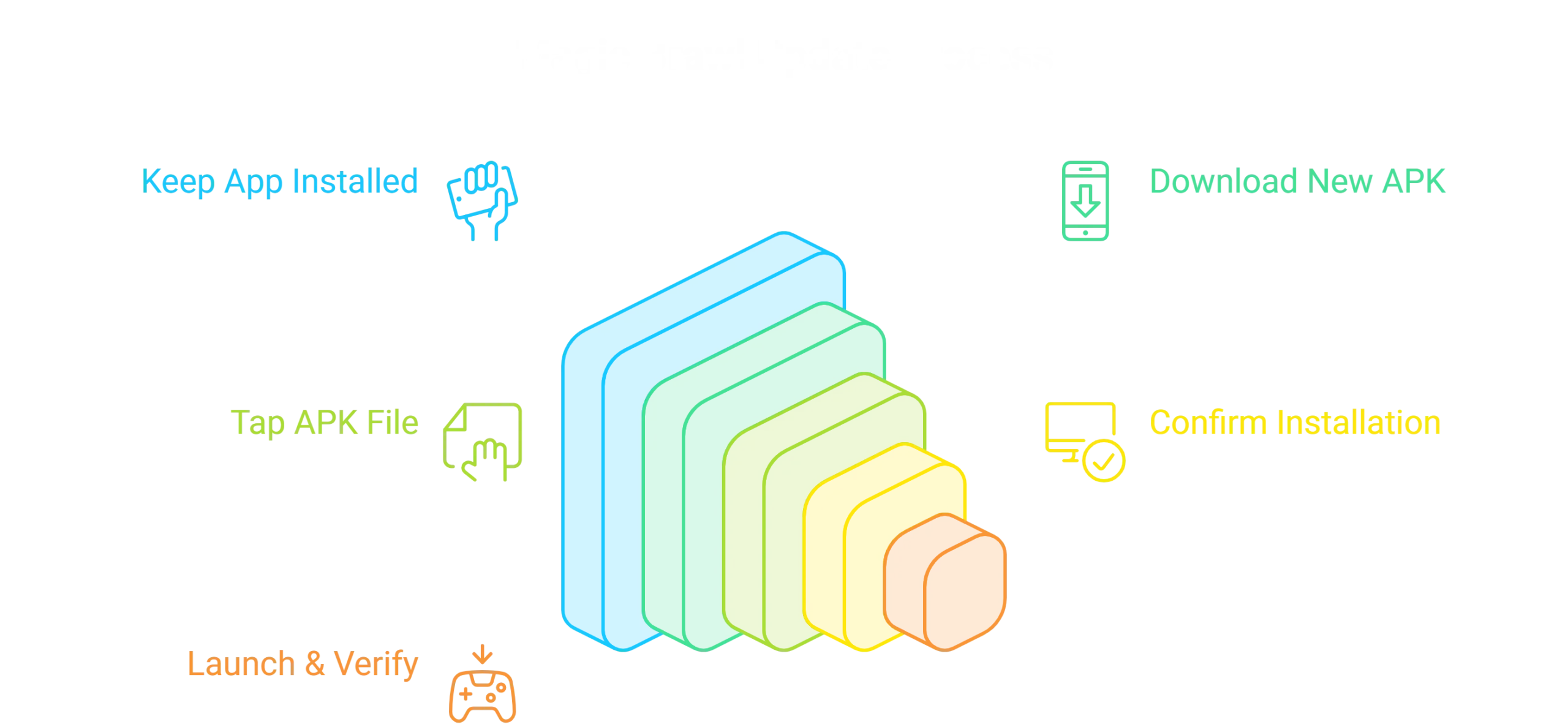
Leave the current app installed. Don’t touch its storage or data in settings.
Download the new APK from magicbrawlapk.com, then open it from your notifications or downloads folder. A browser warning about the file type shows up for any APK that didn’t come through the Play Store, not a sign of an issue with this specific file.
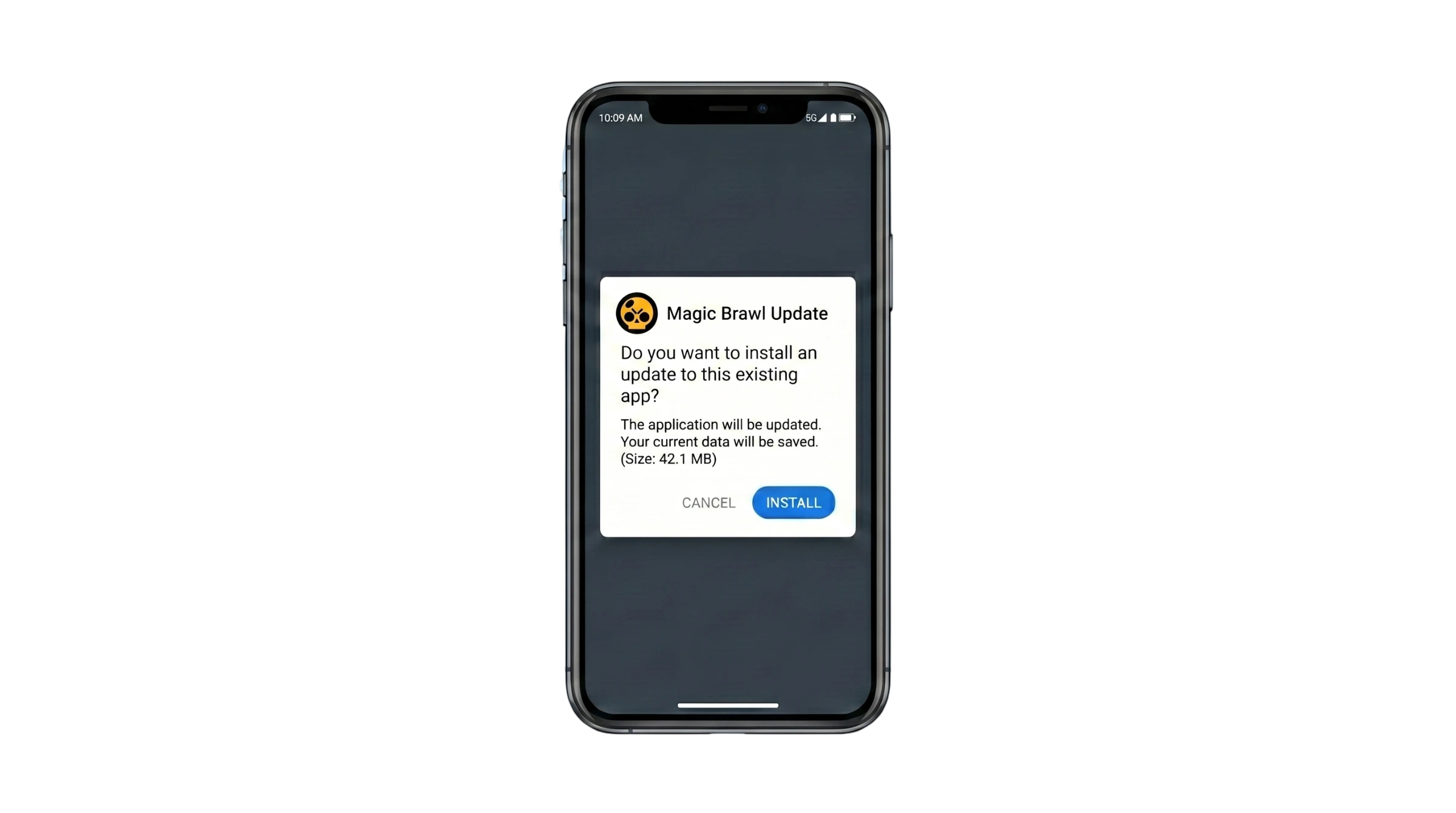
Tap the file. If Android shows something closer to “update this app” than a fresh install screen, that’s confirmation it recognized the existing install.
Confirm, let the progress bar finish, then open the app. Trophies, brawlers, skins, all where you left them.
Common Install Errors and What Causes Them
“App Not Installed” or Package Parsing Error:
Your data is fine here. The install failed before it touched anything.
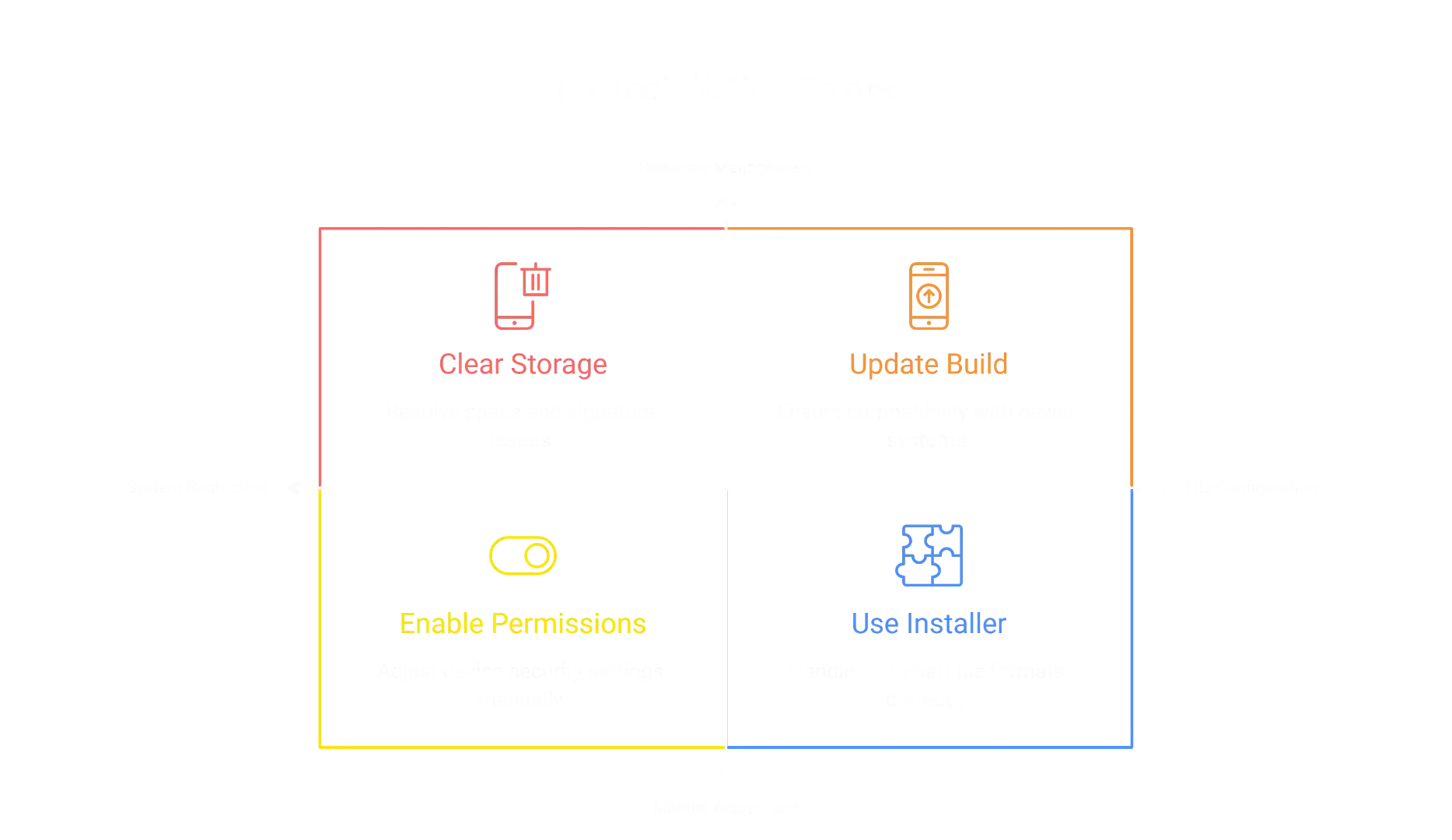
Low storage is the most common cause. The download might be small, but unpacking needs more room than the file size suggests. Two gigabytes free is a safe cushion. Settings, then Storage, shows what you’ve actually got.
Signature mismatches cause this too, and they’re worth understanding since people often mistake this error for data loss. Every installed app carries a signature tied to whoever built it. If the file you’re installing now carries a different signature than the version currently installed, Android assumes it might be a tampered copy and blocks it on purpose. That’s a security feature working correctly, not a glitch. Sticking to one download source keeps the signature consistent and avoids this entirely.
Android 14 and 15 block some installs outright, regardless of storage or signature. Both versions added a check that rejects apps built against an older baseline, no matter how much free space you have. If you’re hitting this specifically, it’s not something fixable from your end through phone settings. It means the build you downloaded hasn’t been updated to meet that newer requirement yet. Checking the download page for a build that explicitly lists support for your Android version, or reaching out through the site’s support channel, is the realistic next step rather than digging through phone settings looking for a toggle that isn’t there.
Some updates now ship as a base file plus matching pieces, called split APKs or app bundles, instead of one self-contained file. This usually only matters if you were running an older single-file version and the new update switches to this format, or vice versa. A standard file manager can’t install split files correctly, since it only sees the base piece and treats it as incomplete. If the download page mentions split or bundle format, you’ll need an installer built for that, commonly called SAI, which reads all the pieces together as one install instead of opening the base file alone.
Unknown Sources Blocked:
Android requires per-app permission before installing anything outside the Play Store. If your file manager hasn’t been granted it, the install fails quietly. It’s under Settings, then Apps, then the specific app you used to open the file. Samsung buries this slightly deeper, under Apps, then the three-dot menu, then Special Access.
If the Game Won’t Load After Updating
Stuck on a loading screen:
Server traffic, not your data. A wave of players logging in right after an update slows things down. Wait it out.
Black screen on launch:
A graphics asset that didn’t render correctly the first time. Go to phone settings, find the app, and clear the cache, not data. The two buttons usually sit right next to each other, and tapping Clear Data does the same thing uninstalling does, so check twice before confirming.
How to Secure and Recover Your Magic Brawl Account
Backing Up Your Player ID:
Worth thirty seconds. Screenshot your profile screen, the one with your Player ID and username, and save it somewhere outside the game, like a cloud backup or email to yourself.
If a server issue ever does cause a problem, that screenshot gives support something concrete to search for instead of just your description.
If You Already Lost Progress:
Once Android deletes that local folder, there’s no built-in recovery. There was never a server-side copy to pull from.
Two things worth checking anyway. First, see if your phone has a recent manufacturer backup, Samsung’s Smart Switch or similar, from before the uninstall. If app data was included, restoring to that point sometimes brings the folder back. Second, if you’d screenshotted your player ID earlier, send it to community support. No guarantee, but it gives them something to work with.
Staying Safe & Finding the Latest Updates
Knowing When a New Update Is Out:
The game doesn’t push update notifications the way Play Store apps do, since there’s no Play Store account managing that behind the scenes. Most players catch a new version through the same place they found the game originally, an announcement post, a community Discord, or simply noticing the version number on the loading screen doesn’t match what’s listed on the download page anymore. Checking every few weeks is usually enough, since updates don’t land on any fixed schedule.
A Word on Safety Before You Download Anything:
Magic Brawl runs outside official app stores, so the checks Google Play normally handles aren’t there by default.
A quick Play Protect or antivirus scan on the downloaded file, not just a general device scan, takes thirty seconds. Afterward, check that the file size roughly matches the number shown on the site, and that the scan didn’t flag permissions a game has no reason to need, like contacts or SMS access.
Private server builds also operate outside the original game’s official network and terms of service. That’s simply how they exist. It means no official support line and no uptime guarantee the way a published store title would have.
Overwrite Install vs Fresh Install
|
What Changes |
Overwrite (what to do) |
Fresh Install After Uninstalling (what to avoid) |
|
Old app |
Stays on your phone |
Removed first |
|
Data folder |
Untouched |
Deleted with the app |
|
Progress |
Carries over fully |
Gone, no recovery |
|
Android’s prompt |
“Update this app” |
Standard install screen |
Conclusion:
Losing your Magic Brawl progress just because of a new update is a massive pain, but it’s completely avoidable. The golden rule is simple: never delete your old app. Just download the new update and install it directly over the old one, and all your trophies and skins will be right there waiting for you. If you get any installation errors along the way, just clear up some phone storage or toggle your permissions, and you’ll be good to go.